Master the ZamPortal Login: How to Use 2FA and ZamPass Like a Pro
The Post-Registration Challenge
So, you’ve successfully registered your ZamPass account. Congratulations! However, many users find that logging in the second time is where the real confusion starts. Because the portal handles sensitive documents like NRCs and Passports, it uses Two-Factor Authentication (2FA). This means a password alone isn’t enough; you need a second “key” to enter.
Step-by-Step Login Process
How to Sign In Correcty
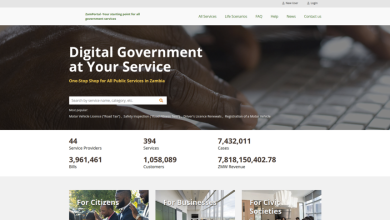
Navigate: Go to the official ZamPortal and click Login.
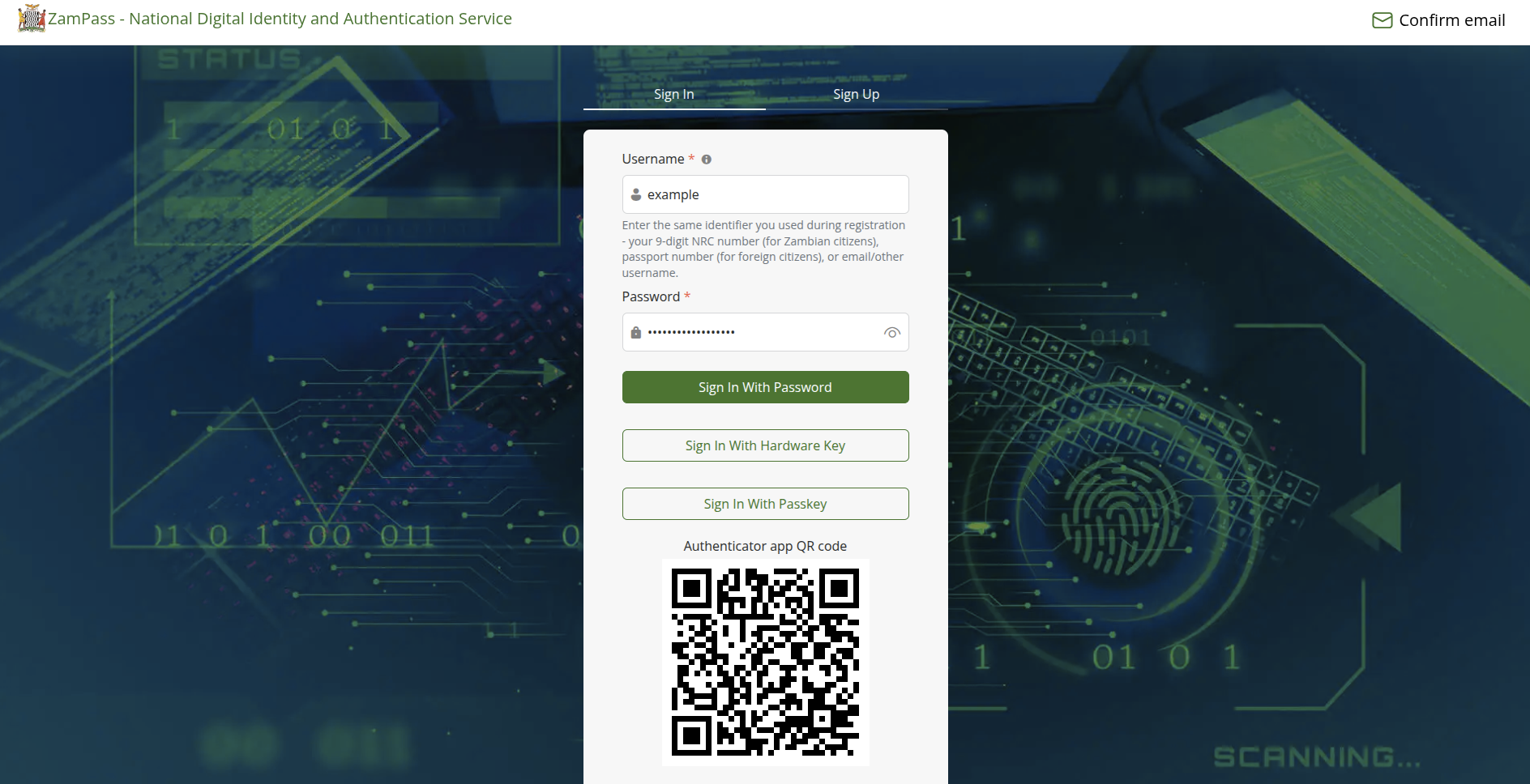
The Redirection: You will be redirected to the ZamPass (National Authentication) page.
Username: Enter the same identifier you used during registration – your 9-digit NRC number (for Zambian citizens), passport number (for foreign citizens), or email/other username.
Password: Enter the password you created during sign-up.
The 2FA Wall: This is where the system asks for a verification code.
Understanding the 2FA Methods. Where is my code?
Depending on how you set up your account, the system will send a One-Time Password (OTP) or request a “Push Notification.” Here are the three ways to get in:
1. Email Verification (Most Common)
Check the inbox of the email you used to register. Look for an email from Smart Zambia or ZamPass.
Quick Tip: If it’s not in your Inbox, check the Spam/Junk folder. Government servers are often flagged by Gmail or Yahoo.
2. SMS (Phone Number)
The system sends a 6-digit code to the Zambian mobile number linked to your NRC.
Common Issue: If your network signal (Airtel/MTN/Zamtel) is weak, the SMS might delay. Do not click “Resend” too many times, or you might lock your account.
3. The ZamGov App (The “Pro” Way)
For the most tech-savvy users, you can download the ZamGov App from the Google Play Store or Apple App Store.
QR Sign-in: You can simply scan the QR code on your computer screen using the app to log in instantly.
Authenticator: The app can generate TOTP codes (codes that change every 30 seconds) even when you are offline.
Common Login Errors
“Invalid Credentials” or “Account Not Verified”?
If you are seeing these errors, check the following:
Verify First: Did you click the “Confirm Account” link in the very first email you got after registering? If not, the login will fail.
Password Reset: If you’ve forgotten your password, use the “Recover Account” link. It will send a reset link to your registered email.
Verdict: The Golden Rule
Concluding Verdict: To avoid login headaches, we highly recommend using the ZamGov Mobile App. It bypasses the need for waiting for slow SMS codes and keeps your digital NRC right on your phone.